

Canvas has a built-in help feature that connects you directly to Canvas support staff who can assist you with technical issues inside the platform. You can access it anytime by clicking the Help button (the question mark icon) in the global navigation on the left-hand side.
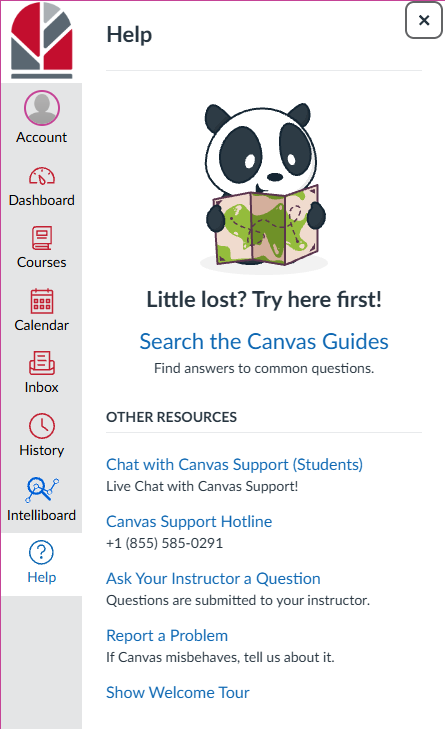
Before you reach out, the list below are a few examples, here’s who handles what:
Contact Canvas Support (Chat or Call) for issues like (eLearning Team can help with some these as well):
- A page, video, or file inside Canvas isn’t showing it as submitted
- A quiz closed unexpectedly or timed out before you finished
- Canvas is freezing, crashing, or displaying error messages
- Canvas is running slowly or not responding
Contact Sandhills IT or the eLearning Team instead for:
- IT
- Trouble logging in to Canvas or forgotten passwords
- Issues with your student email or Sandhills account
- eLearning Team
- Problems with Cengage, Teams, or other third party tools
- You can’t access a discussion, quiz, or assignment
- A link inside your course is broken
Contact your instructor for:
- Questions about assignments, grades, or course materials
- Requesting deadline extension
- Anything related to how the course content