

Submitting assignments in Canvas is straightforward, but the steps may vary slightly depending on how your instructor set up the assignments, some accept file uploads, others ask you to type directly in a text box, and some may use external tool. Always check the assignment instructions carefully before submitting. Once submitting you’ll get a confirmation and can view your submission at any time.
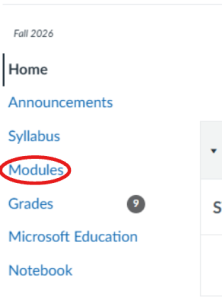
- Find the assignment in your Modules.
- Click the Assignment Name to open it and read the instructions and click Start Assignment.
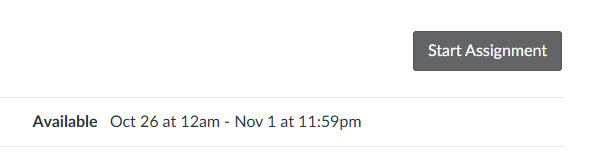
- Click the Submit Assignment button.
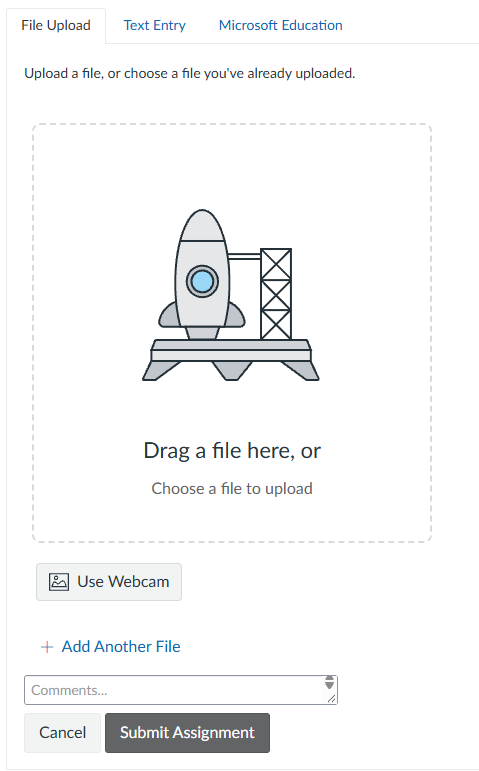
- Depending on the submission type, either:
-
- Upload file: click Choose File, select your document, and click Submit Assignment
- Text Entry: type or paste your response directly in the text box and click Submit Assignment.
-
- Look for the Submission Confirmation message to confirm it went through.
Please Note: You can resubmit before the due dates if needed, your instructor will see the most recent version.